Security, DRM, Copy Protection and Distribution Management Solution for Excel, Word, PowerPoint Documents ( xls, xlsx, xlsb, xlsm, docx, ppt, pps, pptx )
Office Security OwnerGuard ( Version v12.7.8 )
Microsoft® Office Security OwnerGuard Table Of Contents
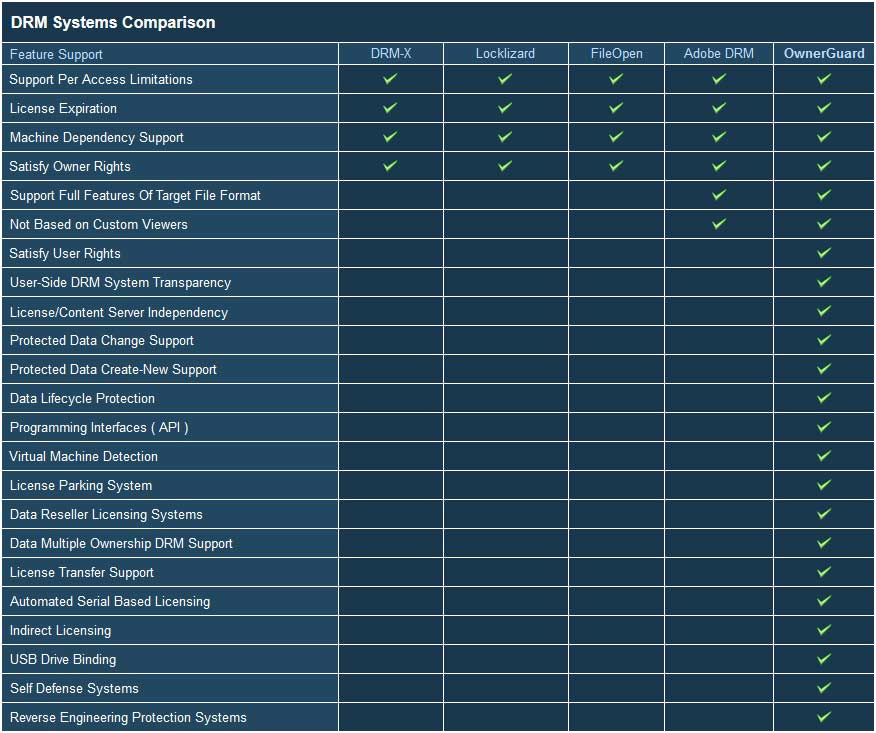
 Security and DRM Systems Comparison
Security and Licensing Process
| Description
Office Security OwnerGuard provides the ultimate Security, DRM, Copy Protection, Licensing, Watermarking and Distribution Management solution for Excel Spreadsheet Documents ( xls, xlsx, xlsm, xlsb ), PowerPoint Presentations ( ppt, pps, pptx, pptm, potx, potm, ppsx, ppsm, ppam ) and Word Documents ( docx, docm ) |

With Microsoft® Office Security OwnerGuard you can :
 Lock your secure Excel, Word, PowerPoint Documents to specific User, Computer or USB Drive.
Define High Security Expiration Date or Working Duration for your DRM protected Excel, Word, PowerPoint Documents.
Define Printing watermarks for your protected documents.
Support full features of Microsoft Office Excel, Word and PowerPoint applications for protected documents.
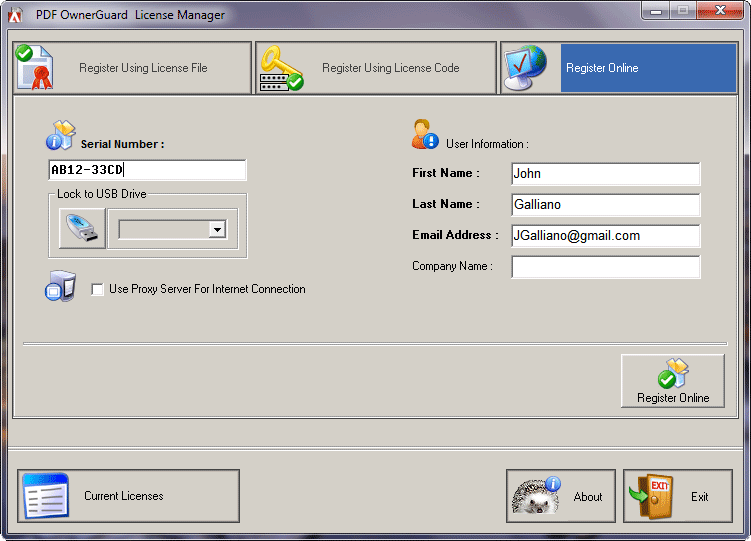
Control and apply all required limitations for your users using a very small user side DRM manager component ( OwnerGuard License Manager ) .
Minimize your users DRM hassles by letting them access your DRM protected documents offline.
Distribute and Sell your DRM protected documents easily while you’ve got full control over them.
Cooperate in Creating, Editing or distributing Office documents while OwnerGuard protects ownership rights for owner(s).
Gain full control over your sensitive documents usage rights.
Feel free to Store, transfer and share your protected contents using your desired method and media just like before.
Features
 Advanced 512 bit unique encryption system for DRM Protected Microsoft Office Documents.
Advanced digital rights protection system to protect your ownership while new Documents are creating using your DRM protected Microsoft Office Documents.
Support a wide range of limitations for users including Machine-Dependency, Working Duration, Expiration Date, Print Watermarking, Printing, Clipboard, Modification, Screen-Capture, OLE Drag&Drops and ….
Fully automated serial based licensing system.
Support Machine Dependent/Independent license codes.
Protection and Licensing Application Programming Interface (API) for customization and full integration.
Support Machine Dependent/Independent licenses to Lock your DRM Protected Excel, Word, PowerPoint Documents to specific computers.
Multiple projects creation and management to make groups for your protected Microsoft Office documents.
Hierarchical reseller licensing system to ease license distribution on the net.
Built in support for integration with windows Active Directory and Group Policy.
DRM Systems Comparison
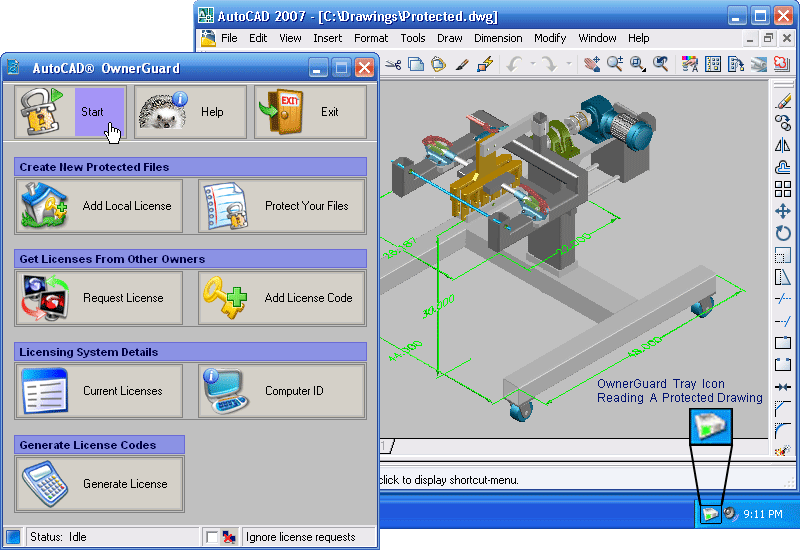
OwnerGuard Step By Step Protection / Licensing Process
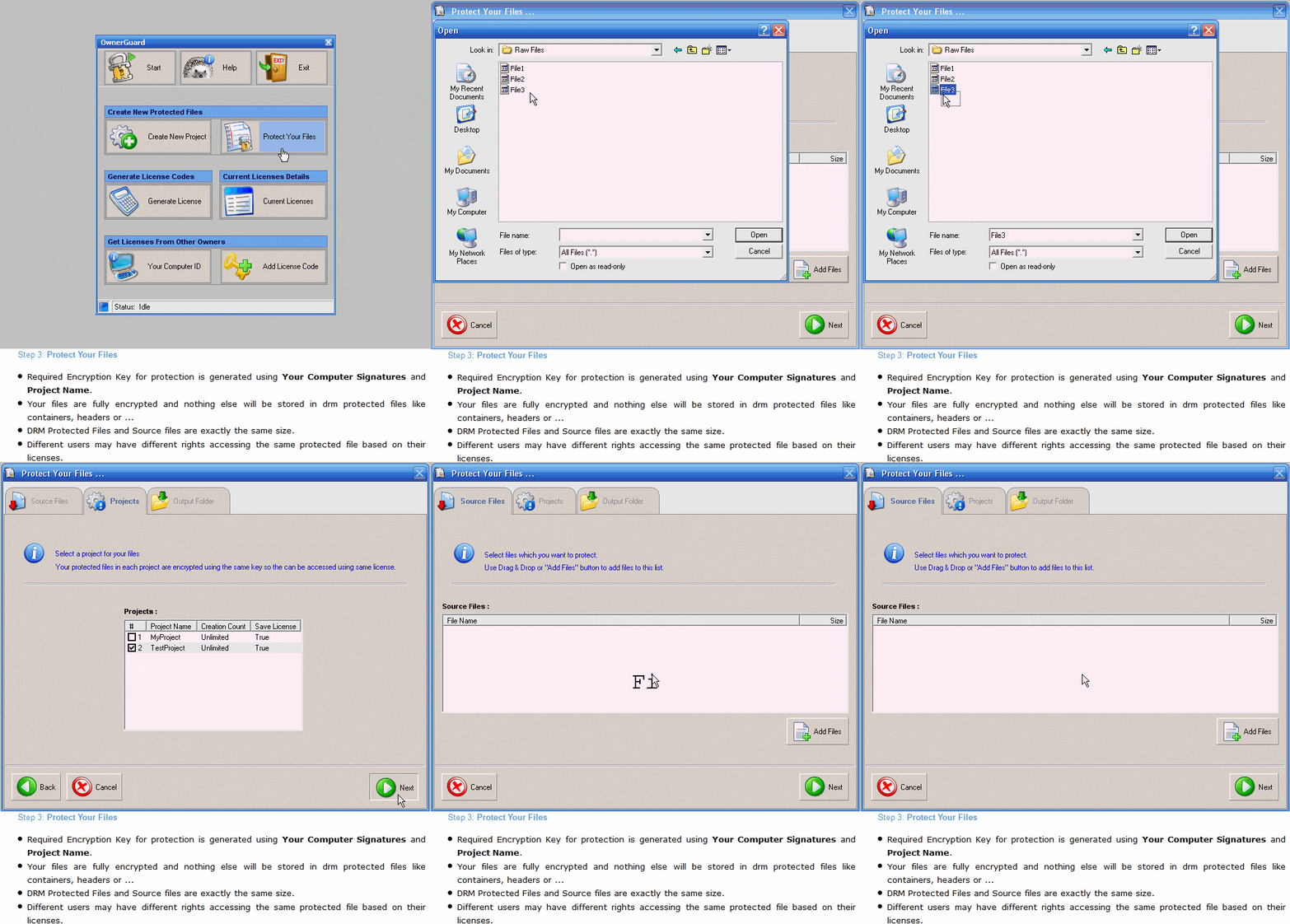
1 – Start
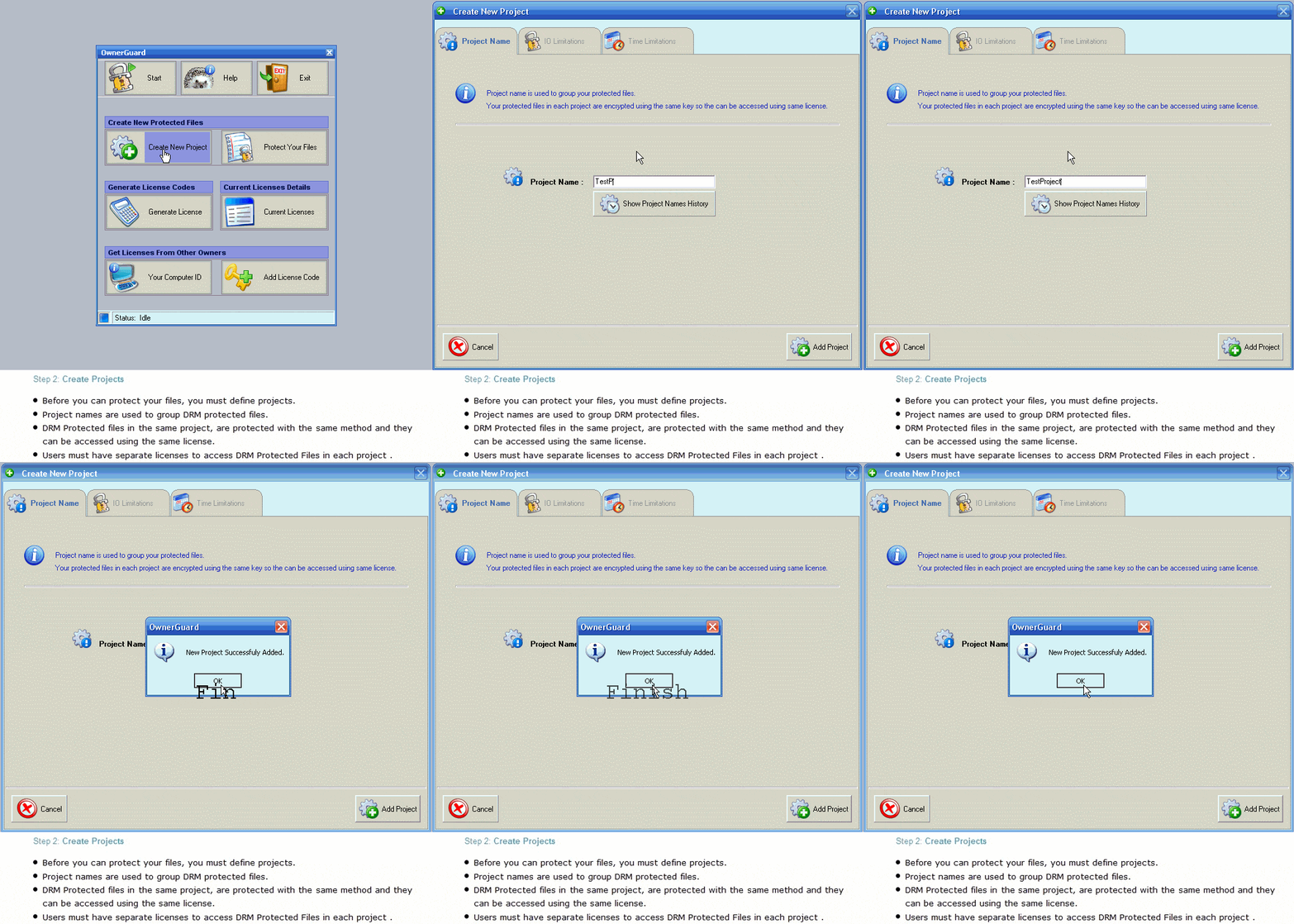
2 – Create Projects 
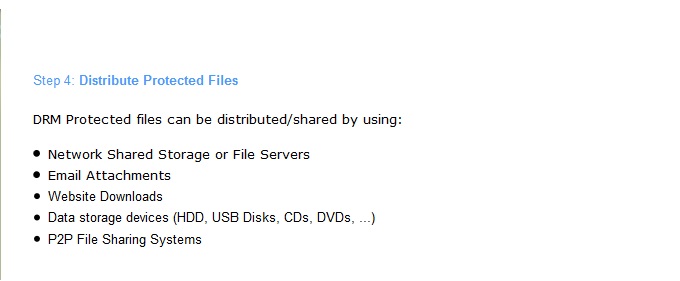
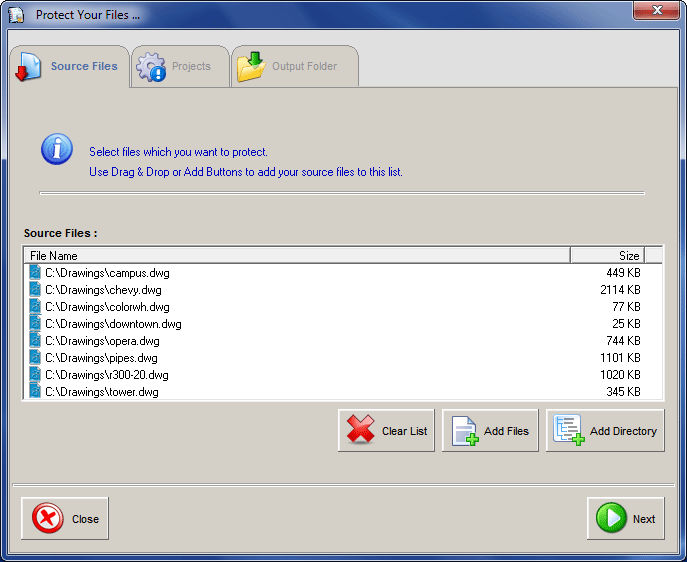
4 – Distribute DRM Protected Files
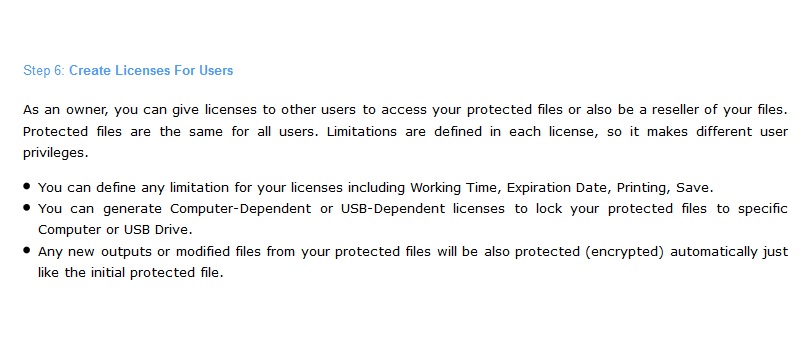
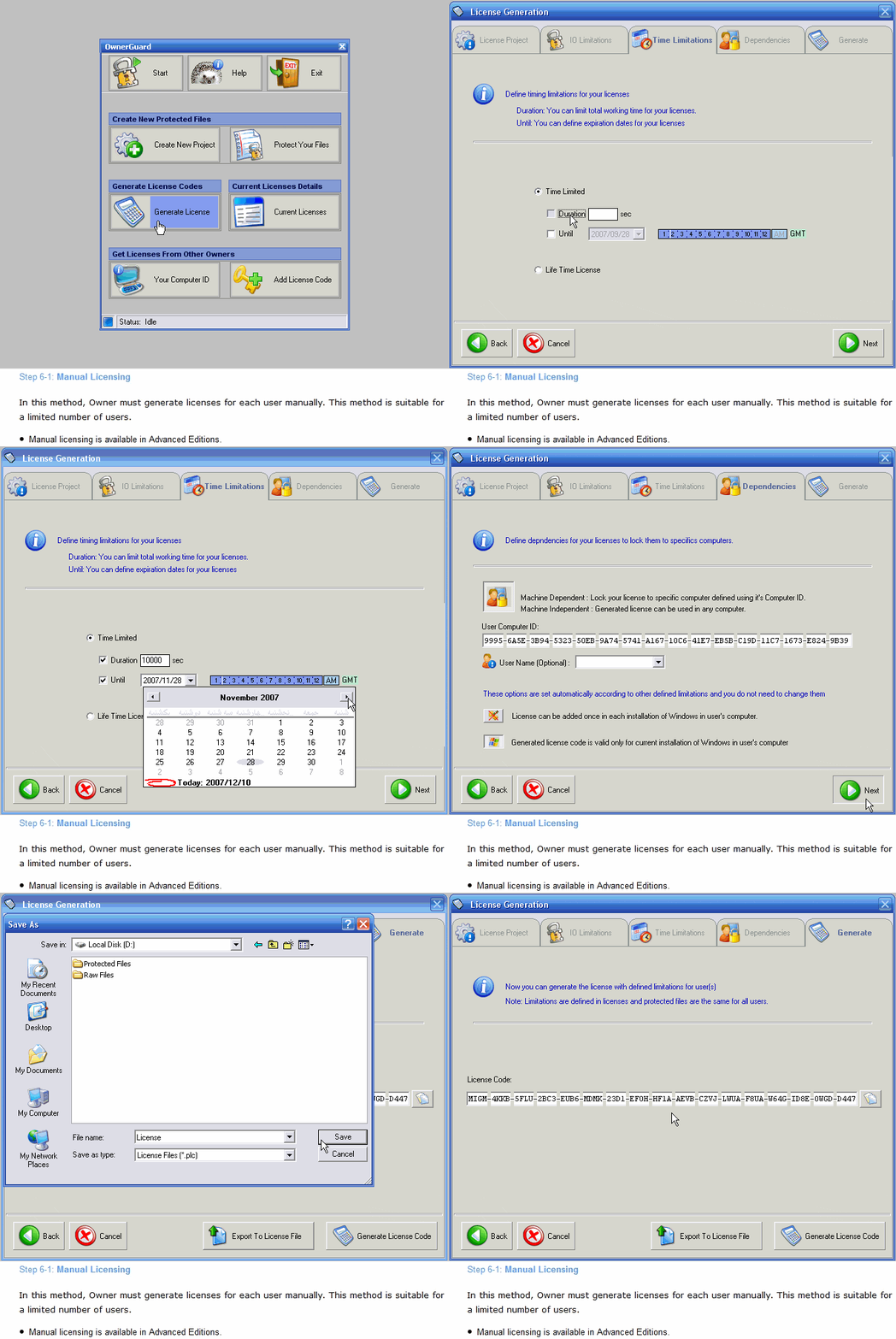
6-1 – Manual Licensing
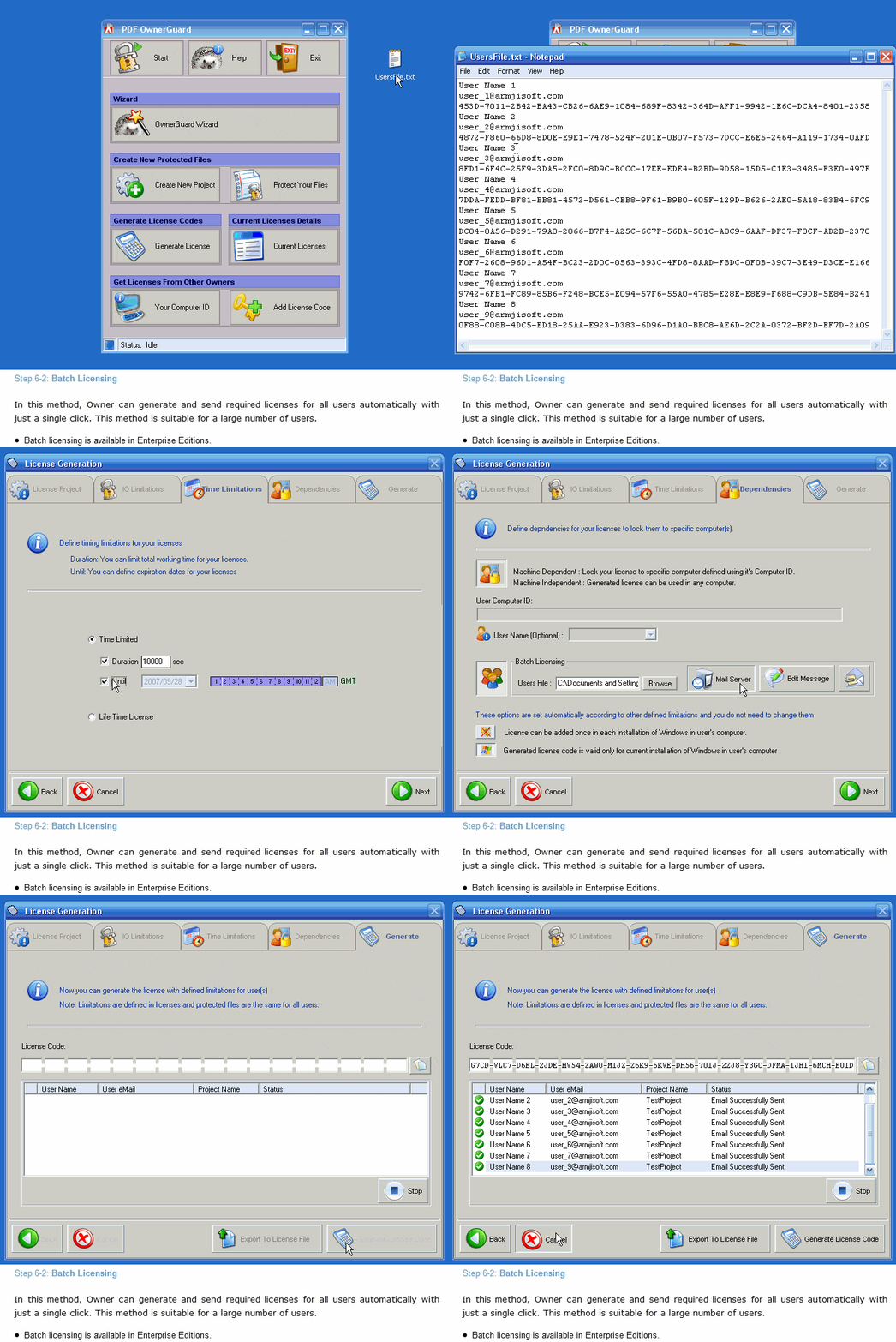
6-2 – Batch Licensing
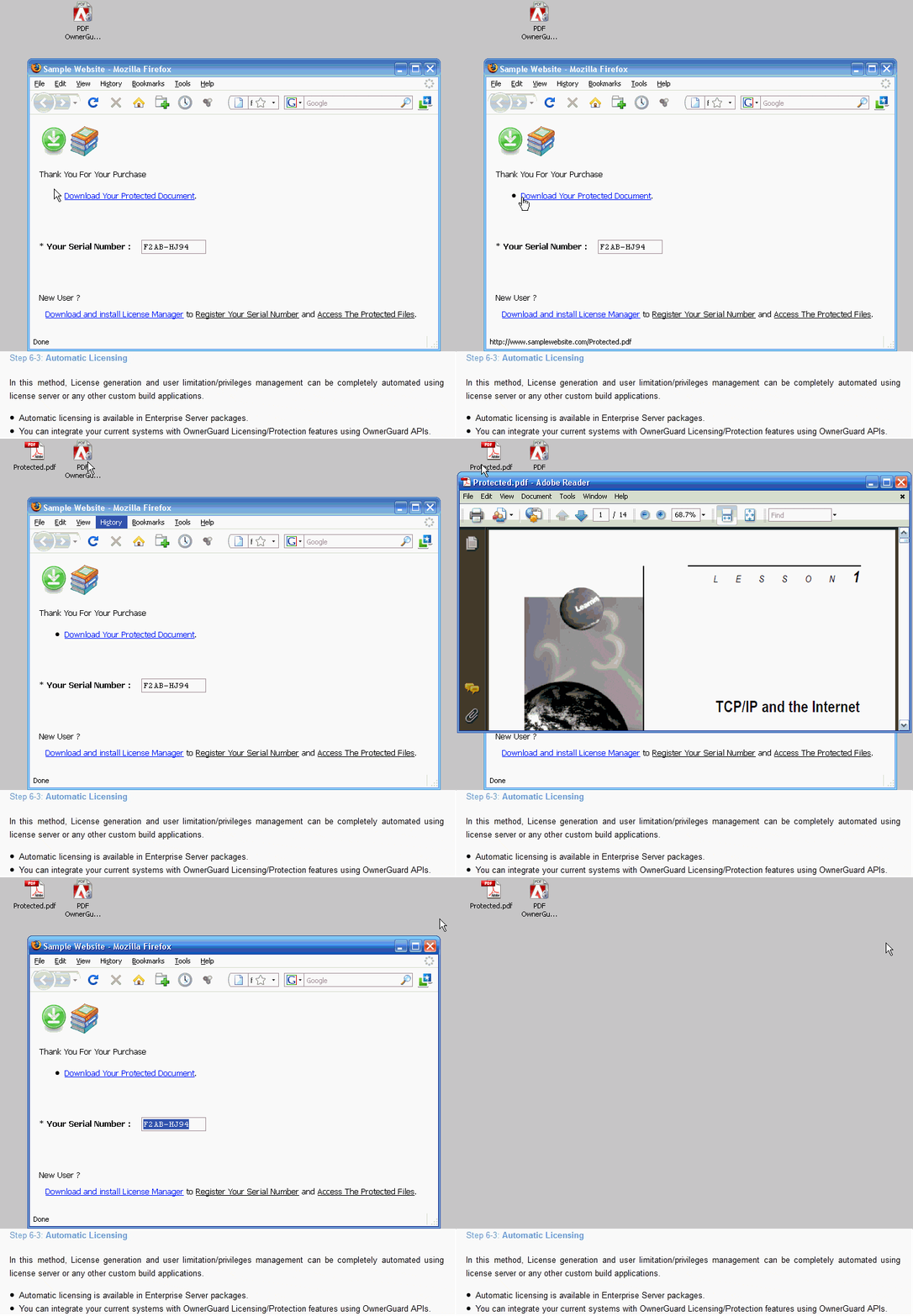
6-3 – Automatic Licensing
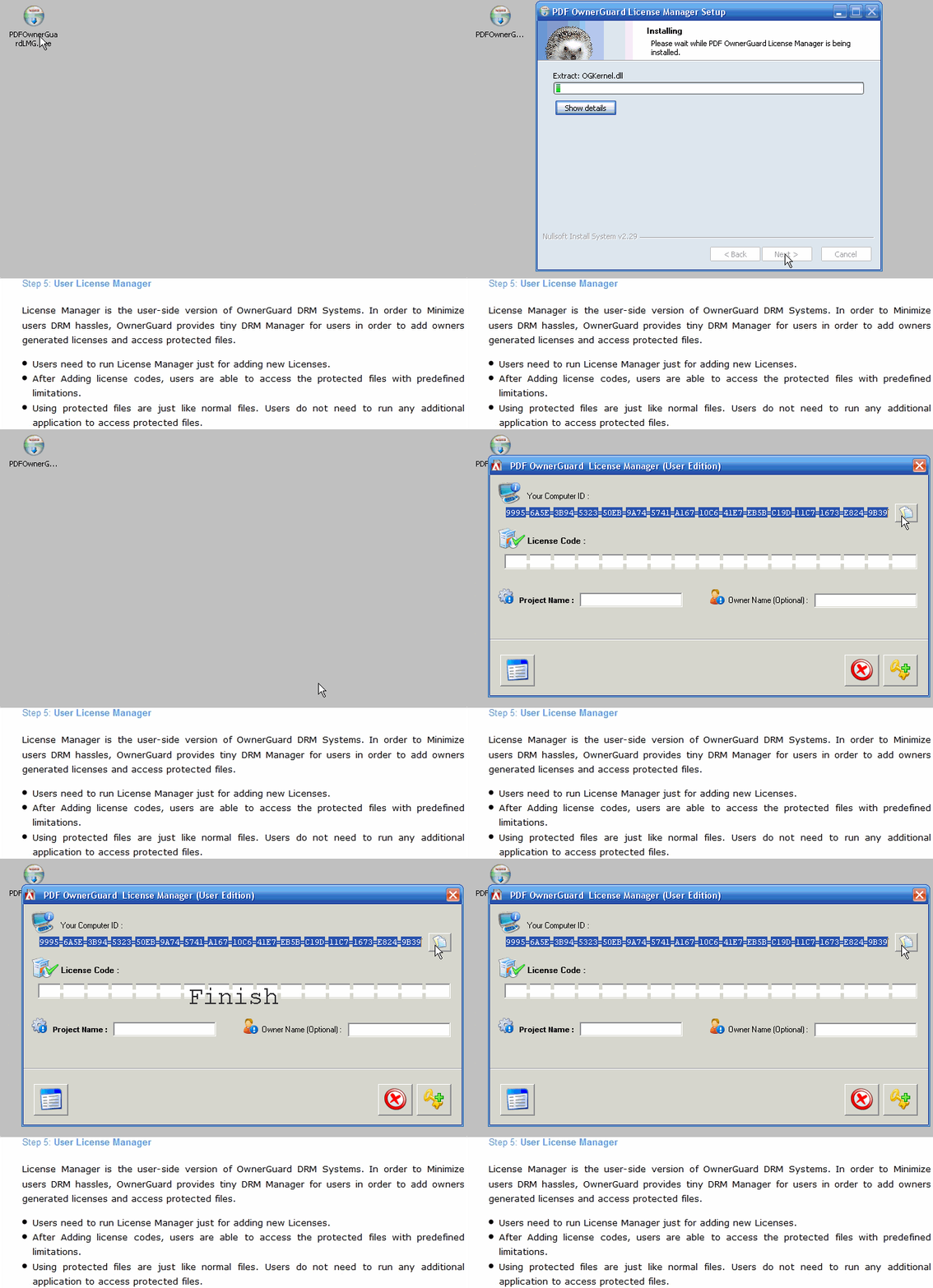
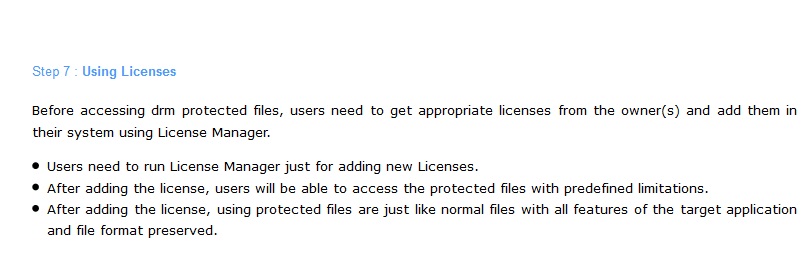
7 – Using Licenses
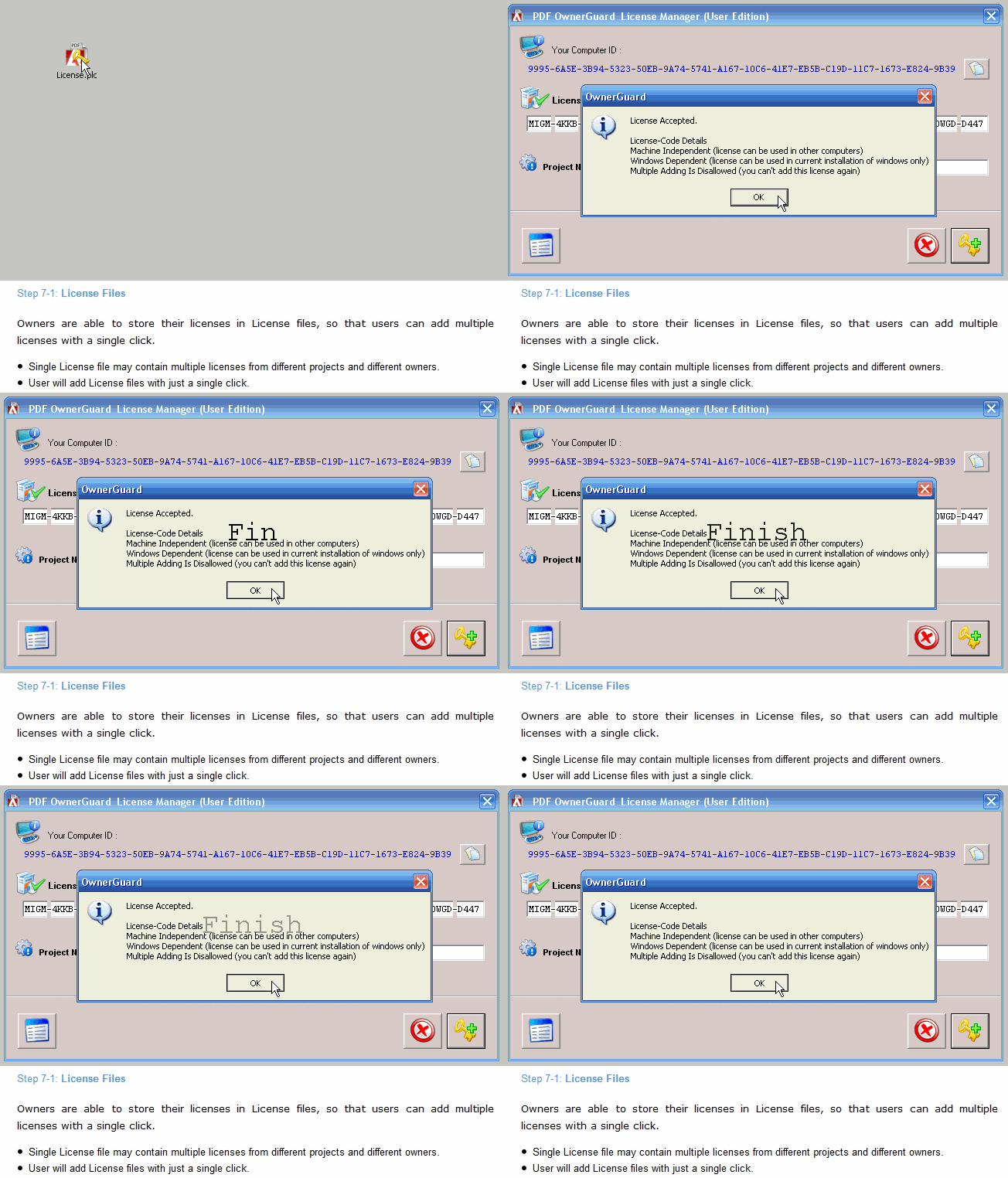
7-1 – License Files
7-2 – License Codes
Screenshots
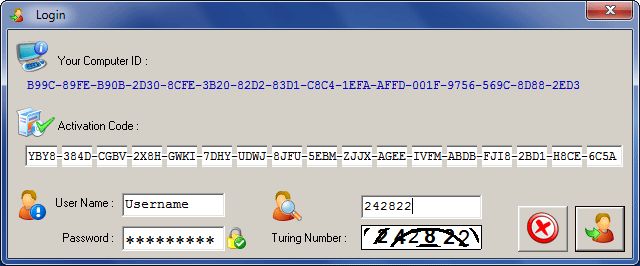
| Login System | Main Window | OwnerGuard DRM Wizard |
 |
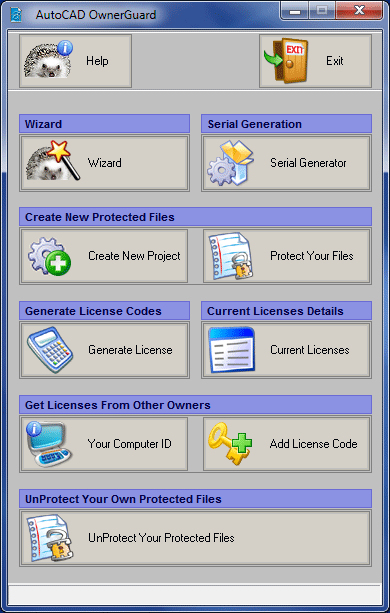 |
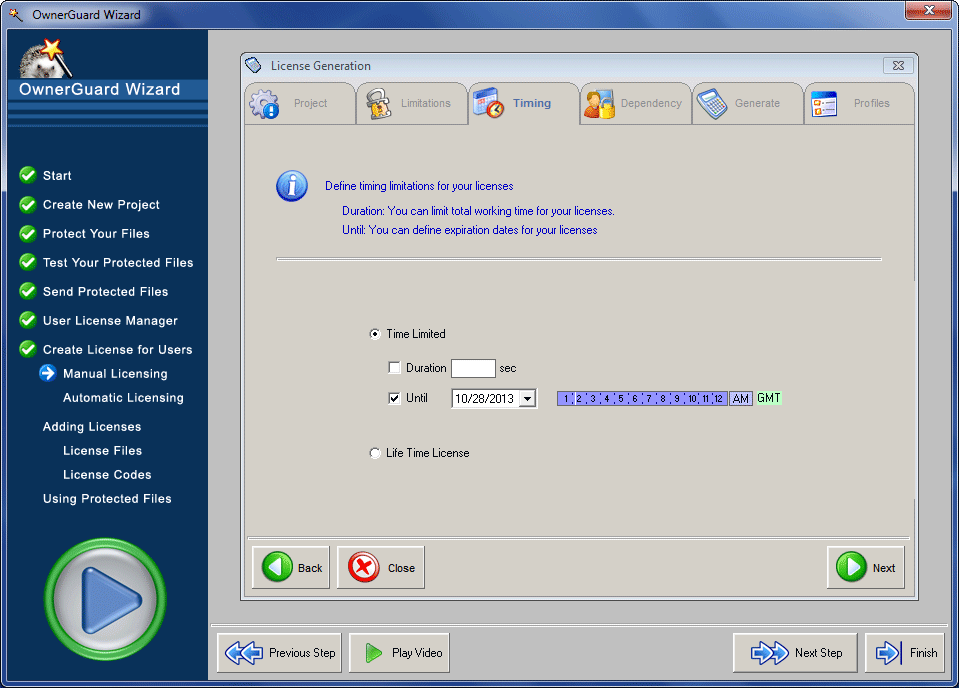 |
| Project Creation | Mutimedia Protection | License Creation |
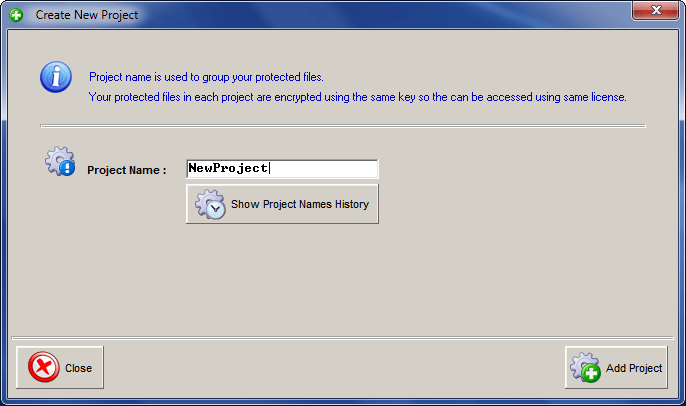 |
|
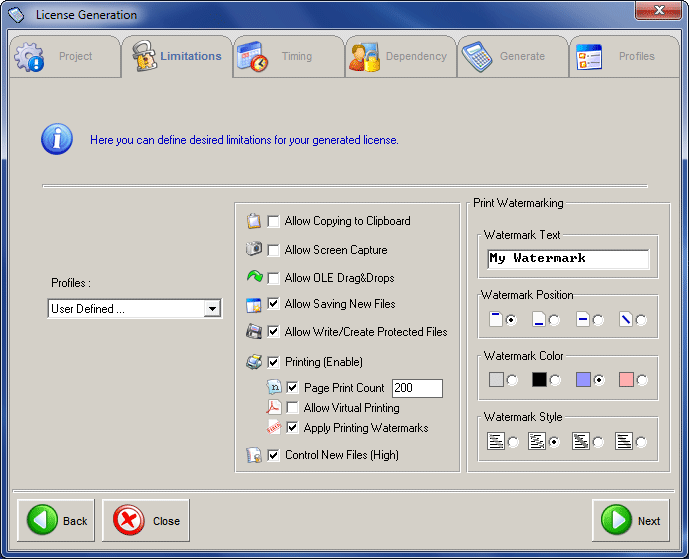 |
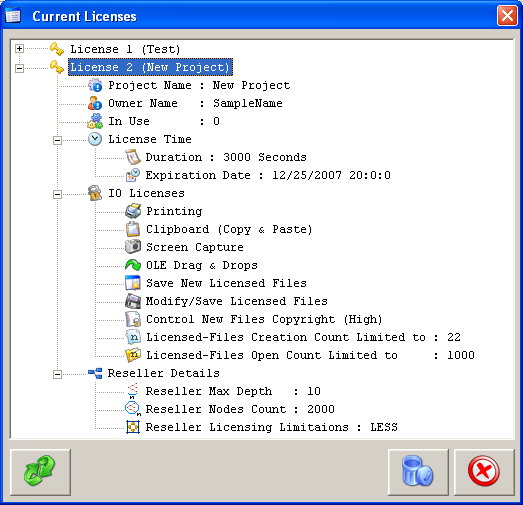
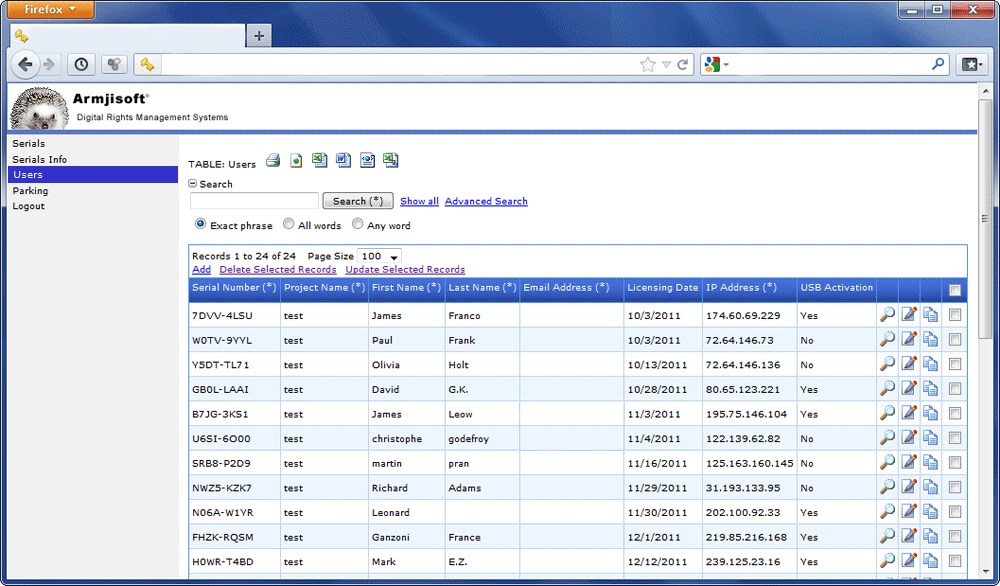
| User Side License Manager | Current Licenses List | Web-Based Management System |
 |
 |
 |
Editions
|
Feature Support |
Personal |
Advanced |
Enterprise |
Server |
| Access DRM Protected Documents |  |
|
|
|
| Support License Rights | |
|
|
|
| Create DRM Protected Documents | |
|
|
|
| Print Watermarking | |
|
|
|
| Number Of Office Documents | Unlimited | Unlimited | Unlimited | Unlimited |
| Number Of Clients | N/A | Unlimited | Unlimited | Unlimited |
| File Size Limit | 500 KB | Unlimited | Unlimited | Unlimited |
| Technical Support | 12 Months | 12 Months | 12 Months | |
| Commercial Usage | |
|
|
|
| Protected Files Decryption By Owner | |
|
|
|
| License Generation | |
|
|
|
| License Transferring | |
|
|
|
| Batch Licensing | |
|
||
| Indirect Licensing | |
|
||
| Reseller Licensing | |
|
||
| Manual Static USB Drive Binding | |
|
||
| Automated Dynamic USB Drive Binding | |
|||
| Built-in Active Directory and Group Policy Integration | |
|||
| License Parking | |
|||
| Automated Licensing | |
|||
| Automatic LM and License Deployment | |
|||
| Web-based Users and Rights Management System | |
|||
| Application Programming Interface (API) | |
|||
|
Note : User Edition (License Manager) is provided as a part of Advanced, Enterprise and Server Packages and can be distributed to unlimited number of users.
|
Free | |||
 Download Download |
 Order Order |
Order |
Order |
System Requirements
Microsoft Office Security OwnerGuard v12.7.8 supports :
Microsoft Word 2000, XP, 2003, 2007, 2010 and 2013 (32 & 64 bit)
Microsoft Excel 2000, XP, 2003, 2007, 2010 and 2013 (32 & 64 bit)
Microsoft PowerPoint & PowerPoint Viewer 2000, XP, 2003, 2007, 2010 and 2013 (32 & 64 bit)
Office Security OwnerGuard supports all (32 & 64 bit) Windows NT families including Windows NT 4.0, 2000, XP, 2003, 2008, 2012, Vista, 7, 8 and 8.1

 |
Customers and Reviews
Click Here to See Armjisoft Customers and OwnerGuard Reviews |
 |
Awards
|
Demo Request
You can request a licensing demonstration about Office Security OwnerGuard packages using our request form.