

Digital Rights Management ( DRM ) high secure technology by ARMJISOFT security system
Document Security, DRM Protection, Digital Rights Management and Distribution Management Solutions
Armjisoft Digital Rights Management Systems is the established leader in Digital Rights Management technologies and inventions.
Our products had been in continual use by military, governmental, publishing, educational, corporations and manufacturing concerns since the company’s founding in 2002. We provide our customers with systems to Protect, Share and Distribute high value information in secure still flexible ways.
Our first priority is to provide best available Digital Right Management , protection, licensing and distribution solutions and establish a reputation for quality work.
OUR SELECTED CUSTOMERS



































|
What is OwnerGuard ? OwnerGuard is a new technology in Data Security, Digital Rights Management and Protection systems which is designed specially for Information Marketing, document protection, distribution management and licensing over internet and local networks. OwnerGuard products are ideal for internal company document security / distribution management, corporate environments and high-volume publishing enterprises. |
Our Available Products :
| Multimedia OwnerGuard
Multimedia OwnerGuard is designed for Adobe Flash SWF and FLV Video Files. Now you can use full features of OwnerGuard DRM Technology to protect and distribute your Flash SWF and FLV files while OwnerGuard protects your digital ownership rights. Multimedia OwnerGuard provides a brand new DRM technology called Inline DRM which allows the protected files to be accessible within any container including Your Website and Web Navigators ( Internet Explorer, Firefox, Mozilla, Netscape, Opera ) , Office Documents, PDF Documents, Flash Player Programs or even Your Own Applications. |

|
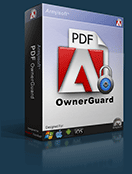
PDF Security OwnerGuard
PDF Security OwnerGuard is the ultimate Securit , PDF DRM , Copy Protection, Licensing and Distribution Management solution for Adobe PDF Documents (EBooks, Trade Secrets, Research Papers, Reports or …) |
|
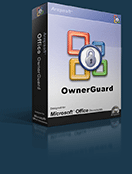
Office Security OwnerGuard
Office Security OwnerGuard is the ultimate Security, DRM, Copy Protection, Licensing and Distribution Management solution for Excel, Word, PowerPoint Documents ( xls, xlsx, doc, docx, ppt, pptx ) |
|
AutoCAD OwnerGuard
AutoCAD OwnerGuard uses the full power of OwnerGuard technology to provide a real Security, Distribution, Publishing, Licensing and DRM solution for Autodesk AutoCAD Drawings (DWG). Now you can gain full control over your drawings usages, distribution and ownership rights. |
|
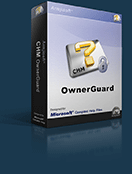
CHM OwnerGuard
CHM OwnerGuard is another member of OwnerGuard family that uses this technology for Microsoft Compiled Html Help Files (CHM). So you can sell and distribute your valuable information in CHM format while OwnerGuard protects your ownership for your CHM documents. |